|
|
# Contributing to Jupyter Notebook
|
|
|
|
|
|
Thanks for contributing to Jupyter Notebook!
|
|
|
|
|
|
Make sure to follow [Project Jupyter's Code of Conduct](https://github.com/jupyter/governance/blob/master/conduct/code_of_conduct.md)
|
|
|
for a friendly and welcoming collaborative environment.
|
|
|
|
|
|
## Setting up a development environment
|
|
|
|
|
|
Note: You will need NodeJS to build the extension package.
|
|
|
|
|
|
The `jlpm` command is JupyterLab's pinned version of [yarn](https://yarnpkg.com/) that is installed with JupyterLab. You may use
|
|
|
`yarn` or `npm` in lieu of `jlpm` below.
|
|
|
|
|
|
**Note**: we recommend using `mamba` to speed the creating of the environment.
|
|
|
|
|
|
```bash
|
|
|
# create a new environment
|
|
|
mamba create -n notebook -c conda-forge python nodejs -y
|
|
|
|
|
|
# activate the environment
|
|
|
mamba activate notebook
|
|
|
|
|
|
# Install package in development mode
|
|
|
pip install -e ".[dev,test]"
|
|
|
|
|
|
# Link the notebook extension and @jupyter-notebook schemas
|
|
|
jlpm develop
|
|
|
|
|
|
# Enable the server extension
|
|
|
jupyter server extension enable notebook
|
|
|
```
|
|
|
|
|
|
`notebook` follows a monorepo structure. To build all the packages at once:
|
|
|
|
|
|
```bash
|
|
|
jlpm build
|
|
|
```
|
|
|
|
|
|
There is also a `watch` script to watch for changes and rebuild the app automatically:
|
|
|
|
|
|
```bash
|
|
|
jlpm watch
|
|
|
```
|
|
|
|
|
|
To make sure the `notebook` server extension is installed:
|
|
|
|
|
|
```bash
|
|
|
$ jupyter server extension list
|
|
|
Config dir: /home/username/.jupyter
|
|
|
|
|
|
Config dir: /home/username/miniforge3/envs/notebook/etc/jupyter
|
|
|
jupyterlab enabled
|
|
|
- Validating jupyterlab...
|
|
|
jupyterlab 3.0.0 OK
|
|
|
notebook enabled
|
|
|
- Validating notebook...
|
|
|
notebook 7.0.0a0 OK
|
|
|
|
|
|
Config dir: /usr/local/etc/jupyter
|
|
|
```
|
|
|
|
|
|
Then start Jupyter Notebook with:
|
|
|
|
|
|
```bash
|
|
|
jupyter notebook
|
|
|
```
|
|
|
|
|
|
## Running Tests
|
|
|
|
|
|
To run the tests:
|
|
|
|
|
|
```bash
|
|
|
jlpm run build:test
|
|
|
jlpm run test
|
|
|
```
|
|
|
|
|
|
There are also end to end tests to cover higher level user interactions, located in the `ui-tests` folder. To run these tests:
|
|
|
|
|
|
```bash
|
|
|
cd ui-tests
|
|
|
# start a new Jupyter server in a terminal
|
|
|
jlpm start
|
|
|
|
|
|
# in a new terminal, run the tests
|
|
|
jlpm test
|
|
|
```
|
|
|
|
|
|
The `test` script calls the Playwright test runner. You can pass additional arguments to `playwright` by appending parameters to the command. For example to run the test in headed mode, `jlpm test --headed`.
|
|
|
|
|
|
Checkout the [Playwright Command Line Reference](https://playwright.dev/docs/test-cli/) for more information about the available command line options.
|
|
|
|
|
|
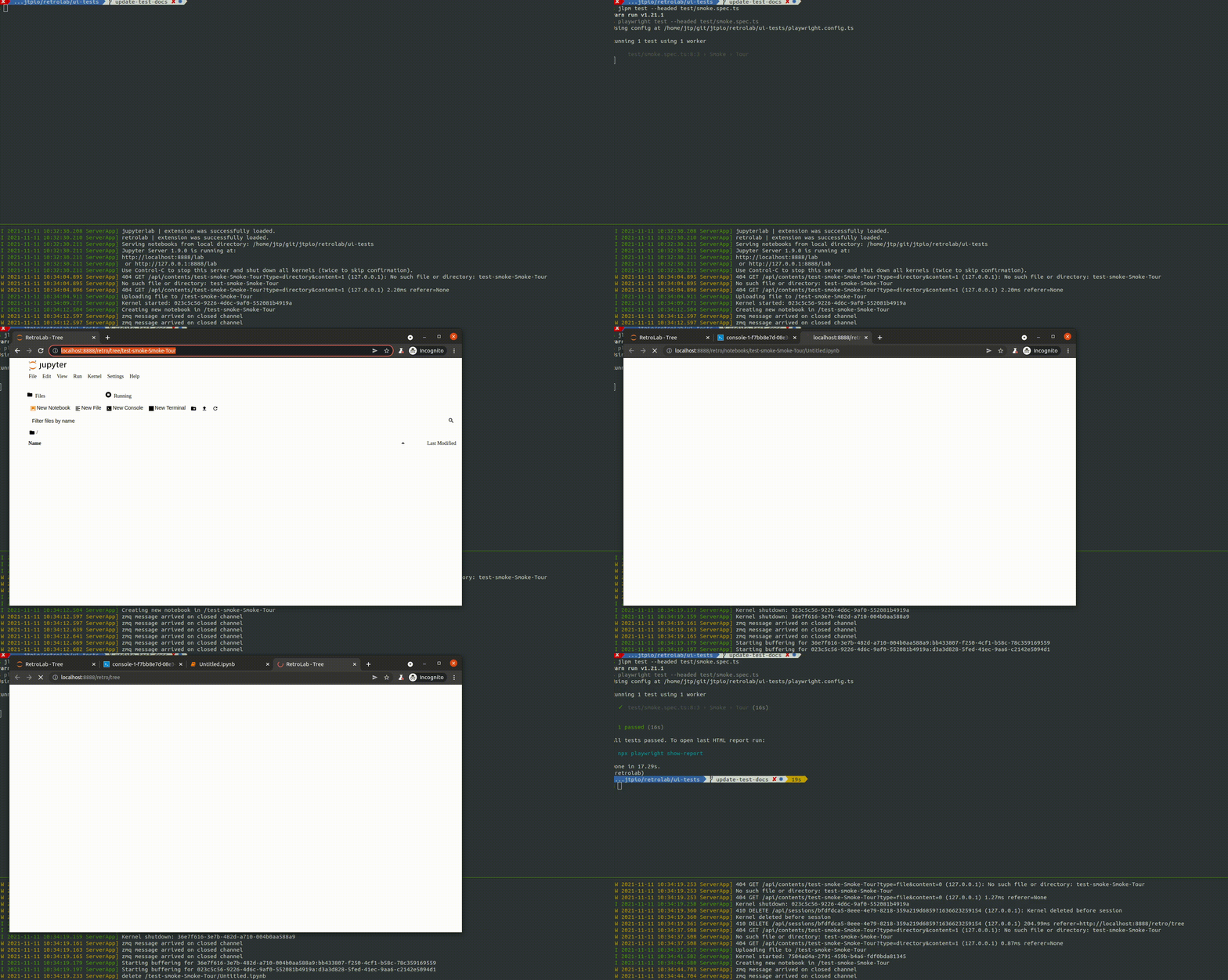
Running the end to end tests in headful mode will trigger something like the following:
|
|
|
|
|
|
|
|
|
|
|
|
### Updating reference snapshots
|
|
|
|
|
|
Often a PR might make changes to the user interface, which can cause the visual regression tests to fail.
|
|
|
|
|
|
If you want to update the reference snapshots while working on a PR you can post the following sentence as a GitHub comment:
|
|
|
|
|
|
```
|
|
|
bot please update playwright snapshots
|
|
|
```
|
|
|
|
|
|
This will trigger a GitHub Action that will run the UI tests automatically and push new commits to the branch if the reference snapshots have changed.
|
|
|
|
|
|
## Code Styling
|
|
|
|
|
|
All non-python source code is formatted using [prettier](https://prettier.io) and python source code is formatted using [black](https://github.com/psf/black)s
|
|
|
When code is modified and committed, all staged files will be
|
|
|
automatically formatted using pre-commit git hooks (with help from
|
|
|
[pre-commit](https://github.com/pre-commit/pre-commit). The benefit of
|
|
|
using a code formatters like `prettier` and `black` is that it removes the topic of
|
|
|
code style from the conversation when reviewing pull requests, thereby
|
|
|
speeding up the review process.
|
|
|
|
|
|
As long as your code is valid,
|
|
|
the pre-commit hook should take care of how it should look.
|
|
|
`pre-commit` and its associated hooks will automatically be installed when
|
|
|
you run `pip install -e ".[dev,test]"`
|
|
|
|
|
|
To install `pre-commit` manually, run the following:
|
|
|
|
|
|
```shell
|
|
|
pip install pre-commit
|
|
|
pre-commit install
|
|
|
```
|
|
|
|
|
|
You can invoke the pre-commit hook by hand at any time with:
|
|
|
|
|
|
```shell
|
|
|
pre-commit run
|
|
|
```
|
|
|
|
|
|
which should run any autoformatting on your code
|
|
|
and tell you about any errors it couldn't fix automatically.
|
|
|
You may also install [black integration](https://github.com/psf/black#editor-integration)
|
|
|
into your text editor to format code automatically.
|
|
|
|
|
|
If you have already committed files before setting up the pre-commit
|
|
|
hook with `pre-commit install`, you can fix everything up using
|
|
|
`pre-commit run --all-files`. You need to make the fixing commit
|
|
|
yourself after that.
|
|
|
|
|
|
You may also use the prettier npm script (e.g. `npm run prettier` or
|
|
|
`yarn prettier` or `jlpm prettier`) to format the entire code base.
|
|
|
We recommend installing a prettier extension for your code editor and
|
|
|
configuring it to format your code with a keyboard shortcut or
|
|
|
automatically on save.
|
|
|
|
|
|
Some of the hooks only run on CI by default, but you can invoke them by
|
|
|
running with the `--hook-stage manual` argument.
|
|
|
|
|
|
## Documentation
|
|
|
|
|
|
First make sure you have set up a development environment as described above.
|
|
|
|
|
|
Then run the following command to build the docs:
|
|
|
|
|
|
```shell
|
|
|
hatch run docs:build
|
|
|
```
|
|
|
|
|
|
In a separate terminal window, run the following command to serve the documentation:
|
|
|
|
|
|
```shell
|
|
|
hatch run docs:serve
|
|
|
```
|
|
|
|
|
|
Now open a web browser and navigate to `http://localhost:8000` to access the documentation.
|
|
|
|
|
|
## Contributing from the browser
|
|
|
|
|
|
Alternatively you can also contribute to Jupyter Notebook without setting up a local environment, directly from a web browser:
|
|
|
|
|
|
- [Gitpod](https://gitpod.io/#https://github.com/jupyter/notebook) integration is enabled. The Gitpod config automatically builds the Jupyter Notebook application and the documentation.
|
|
|
- GitHub’s [built-in editor](https://docs.github.com/en/repositories/working-with-files/managing-files/editing-files) is suitable for contributing small fixes
|
|
|
- A more advanced [github.dev](https://docs.github.com/en/codespaces/the-githubdev-web-based-editor) editor can be accessed by pressing the dot (.) key while in the Jupyter Notebook GitHub repository,
|
