
You can not select more than 25 topics
Topics must start with a letter or number, can include dashes ('-') and can be up to 35 characters long.
409 lines
17 KiB
409 lines
17 KiB
(htmlnotebook)=
|
|
|
|
# The Jupyter Notebook
|
|
|
|
## Introduction
|
|
|
|
**Jupyter Notebook** is a notebook authoring application, under the [Project
|
|
Jupyter](https://docs.jupyter.org/en/latest/) umbrella. Built on the power of
|
|
the [computational notebook format](https://docs.jupyter.org/en/latest/#what-is-a-notebook),
|
|
**Jupyter Notebook** offers fast, interactive new ways to prototype and explain
|
|
your code, explore and visualize your data, and share your ideas with others.
|
|
|
|
Notebooks extend the console-based approach to interactive computing in a
|
|
qualitatively new direction, providing a web-based application suitable for
|
|
capturing the whole computation process: developing, documenting, and executing
|
|
code, as well as communicating the results. The Jupyter notebook combines two
|
|
components:
|
|
|
|
**A web application:** A browser-based editing program for interactive authoring
|
|
of computational notebooks which provides a fast interactive environment for prototyping and
|
|
explaining code, exploring and visualizing data, and sharing ideas with others
|
|
|
|
**Computational Notebook documents**: A shareable document that combines computer
|
|
code, plain language descriptions, data, rich visualizations like 3D models, charts,
|
|
mathematics, graphs and figures, and interactive controls
|
|
|
|
```{seealso}
|
|
See the {ref}`installation guide <jupyter:install>` on how to install the
|
|
notebook and its dependencies.
|
|
```
|
|
|
|
### Main features of the web application
|
|
|
|
- In-browser editing for code, with automatic syntax highlighting,
|
|
indentation, and tab completion/introspection.
|
|
- The ability to execute code from the browser, with the results of
|
|
computations attached to the code which generated them.
|
|
- Displaying the result of computation using rich media representations, such
|
|
as HTML, LaTeX, PNG, SVG, etc. For example, publication-quality figures
|
|
rendered by the [matplotlib] library, can be included inline.
|
|
- In-browser editing for rich text using the [Markdown] markup language, which
|
|
can provide commentary for the code, is not limited to plain text.
|
|
- The ability to easily include mathematical notation within markdown cells
|
|
using LaTeX, and rendered natively by [MathJax].
|
|
|
|
### Notebook documents
|
|
|
|
Notebook documents contains the inputs and outputs of a interactive session as
|
|
well as additional text that accompanies the code but is not meant for
|
|
execution. In this way, notebook files can serve as a complete computational
|
|
record of a session, interleaving executable code with explanatory text,
|
|
mathematics, and rich representations of resulting objects. These documents
|
|
are internally [JSON] files and are saved with the `.ipynb` extension. Since
|
|
JSON is a plain text format, they can be version-controlled and shared with
|
|
colleagues.
|
|
|
|
Notebooks may be exported to a range of static formats, including HTML (for
|
|
example, for blog posts), reStructuredText, LaTeX, PDF, and slide shows, via
|
|
the [nbconvert] command.
|
|
|
|
Furthermore, any `.ipynb` notebook document available from a public
|
|
URL can be shared via the Jupyter Notebook Viewer \<nbviewer>.
|
|
This service loads the notebook document from the URL and renders it as a
|
|
static web page. The results may thus be shared with a colleague, or as a
|
|
public blog post, without other users needing to install the Jupyter notebook
|
|
themselves. In effect, nbviewer is simply [nbconvert] as
|
|
a web service, so you can do your own static conversions with nbconvert,
|
|
without relying on nbviewer.
|
|
|
|
```{seealso}
|
|
{ref}`Details on the notebook JSON file format <nbformat:notebook_file_format>`
|
|
```
|
|
|
|
### Notebooks and privacy
|
|
|
|
Because you use Jupyter in a web browser, some people are understandably
|
|
concerned about using it with sensitive data.
|
|
However, if you followed the standard
|
|
[install instructions](https://jupyter.readthedocs.io/en/latest/install.html),
|
|
Jupyter is actually running on your own computer.
|
|
If the URL in the address bar starts with `http://localhost:` or
|
|
`http://127.0.0.1:`, it's your computer acting as the server.
|
|
Jupyter doesn't send your data anywhere else—and as it's open source,
|
|
other people can check that we're being honest about this.
|
|
|
|
You can also use Jupyter remotely:
|
|
your company or university might run the server for you, for instance.
|
|
If you want to work with sensitive data in those cases,
|
|
talk to your IT or data protection staff about it.
|
|
|
|
We aim to ensure that other pages in your browser or other users on the same
|
|
computer can't access your notebook server. See the [security documentation](https://jupyter-server.readthedocs.io/en/stable/operators/security.html) for
|
|
more about this.
|
|
|
|
## Starting the notebook server
|
|
|
|
You can start running a notebook server from the command line using the
|
|
following command:
|
|
|
|
```
|
|
jupyter notebook
|
|
```
|
|
|
|
This will print some information about the notebook server in your console,
|
|
and open a web browser to the URL of the web application (by default,
|
|
`http://127.0.0.1:8888`).
|
|
|
|
The landing page of the Jupyter notebook web application, the **dashboard**,
|
|
shows the notebooks currently available in the notebook directory (by default,
|
|
the directory from which the notebook server was started).
|
|
|
|
You can create new notebooks from the dashboard with the `New Notebook`
|
|
button, or open existing ones by clicking on their name. You can also drag
|
|
and drop `.ipynb` notebooks and standard `.py` Python source code files
|
|
into the notebook list area.
|
|
|
|
When starting a notebook server from the command line, you can also open a
|
|
particular notebook directly, bypassing the dashboard, with `jupyter notebook my_notebook.ipynb`. The `.ipynb` extension is assumed if no extension is
|
|
given.
|
|
|
|
When you are inside an open notebook, the `File | Open...` menu option will
|
|
open the dashboard in a new browser tab, to allow you to open another notebook
|
|
from the notebook directory or to create a new notebook.
|
|
|
|
```{note}
|
|
You can start more than one notebook server at the same time, if you want
|
|
to work on notebooks in different directories. By default the first
|
|
notebook server starts on port 8888, and later notebook servers search for
|
|
ports near that one. You can also manually specify the port with the
|
|
`--port` option.
|
|
```
|
|
|
|
### Creating a new notebook document
|
|
|
|
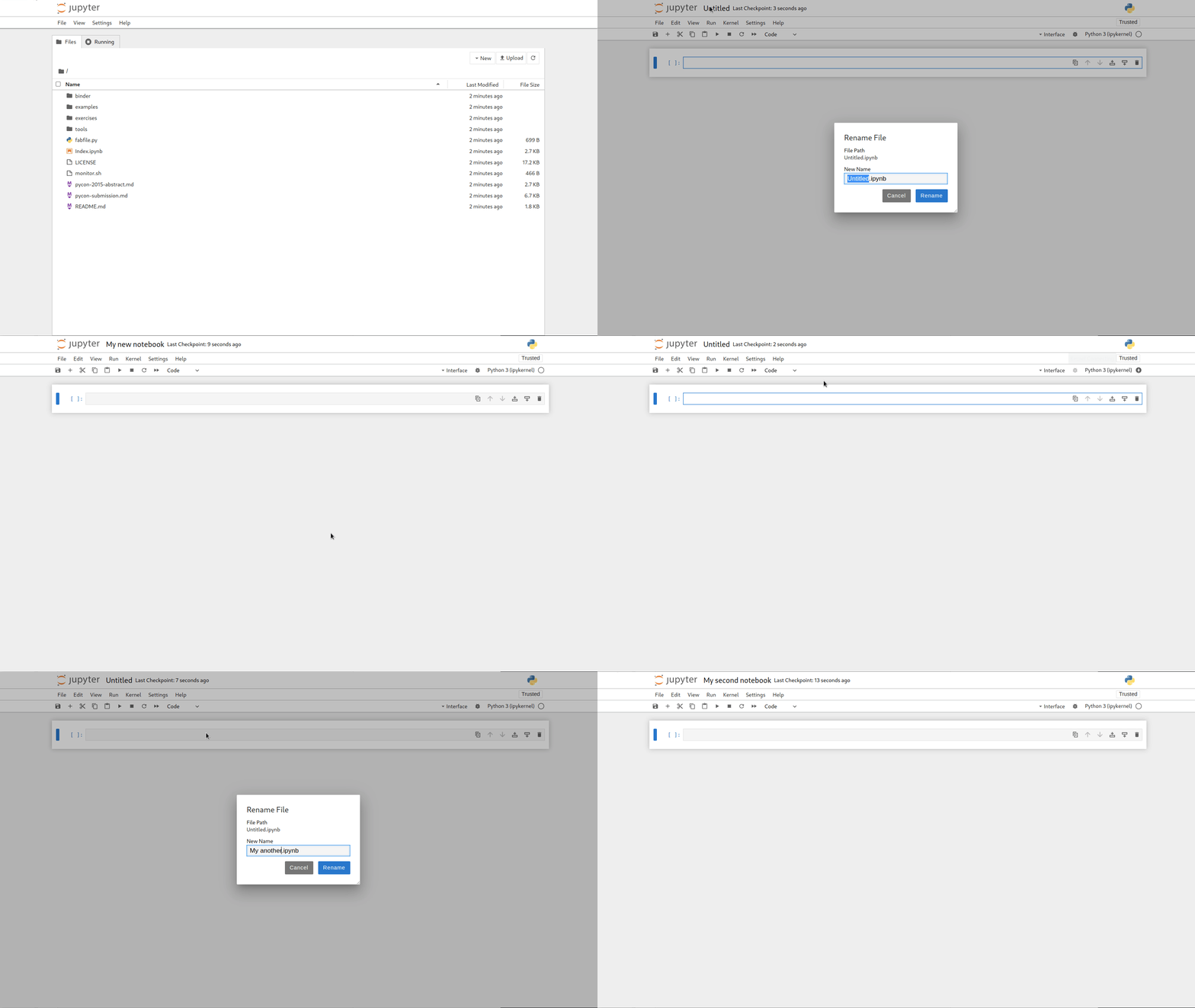
A new notebook may be created at any time, either from the dashboard, or using
|
|
the {menuselection}`File --> New` menu option from within an active notebook.
|
|
The new notebook is created within the same directory and will open in a new
|
|
browser tab. It will also be reflected as a new entry in the notebook list on
|
|
the dashboard.
|
|
|
|
|
|
|
|
### Opening notebooks
|
|
|
|
An open notebook has **exactly one** interactive session connected to a
|
|
kernel, which will execute code sent by the user
|
|
and communicate back results. This kernel remains active if the web browser
|
|
window is closed, and reopening the same notebook from the dashboard will
|
|
reconnect the web application to the same kernel. In the dashboard, notebooks
|
|
with an active kernel have a `Shutdown` button next to them, whereas
|
|
notebooks without an active kernel have a `Delete` button in its place.
|
|
|
|
Other clients may connect to the same kernel.
|
|
When each kernel is started, the notebook server prints to the terminal a
|
|
message like this:
|
|
|
|
```
|
|
[JupyterNotebookApp] Kernel started: 87f7d2c0-13e3-43df-8bb8-1bd37aaf3373
|
|
```
|
|
|
|
This long string is the kernel's ID which is sufficient for getting the
|
|
information necessary to connect to the kernel. If the notebook uses the IPython
|
|
kernel, you can also see this
|
|
connection data by running the `%connect_info` {ref}`magic <magics_explained>`, which will print the same ID information along with other
|
|
details.
|
|
|
|
You can then, for example, manually start a Qt console connected to the _same_
|
|
kernel from the command line, by passing a portion of the ID:
|
|
|
|
```
|
|
$ jupyter qtconsole --existing 87f7d2c0
|
|
```
|
|
|
|
Without an ID, `--existing` will connect to the most recently
|
|
started kernel.
|
|
|
|
With the IPython kernel, you can also run the `%qtconsole`
|
|
{ref}`magic <magics_explained>` in the notebook to open a Qt console connected
|
|
to the same kernel.
|
|
|
|
```{seealso}
|
|
{ref}`ipythonzmq`
|
|
```
|
|
|
|
## Notebook user interface
|
|
|
|
When you create a new notebook document, you will be presented with the
|
|
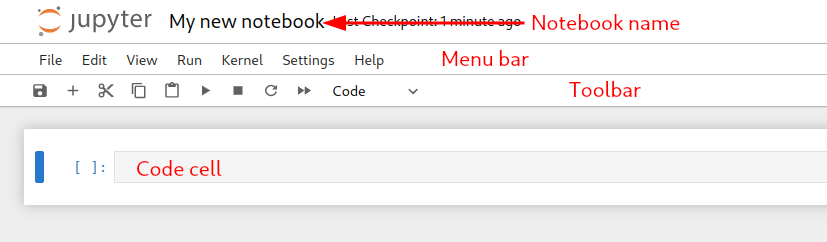
**notebook name**, a **menu bar**, a **toolbar** and an empty **code cell**.
|
|
|
|
|
|
|
|
**Notebook name**: The name displayed at the top of the page,
|
|
next to the Jupyter logo, reflects the name of the `.ipynb` file.
|
|
Clicking on the notebook name brings up a dialog which allows you to rename it.
|
|
Thus, renaming a notebook
|
|
from "Untitled0" to "My first notebook" in the browser, renames the
|
|
`Untitled0.ipynb` file to `My first notebook.ipynb`.
|
|
|
|
**Menu bar**: The menu bar presents different options that may be used to
|
|
manipulate the way the notebook functions.
|
|
|
|
**Toolbar**: The tool bar gives a quick way of performing the most-used
|
|
operations within the notebook, by clicking on an icon.
|
|
|
|
**Code cell**: the default type of cell; read on for an explanation of cells.
|
|
|
|
## Structure of a notebook document
|
|
|
|
The notebook consists of a sequence of cells. A cell is a multiline text input
|
|
field, and its contents can be executed by using {kbd}`Shift-Enter`, or by
|
|
clicking either the "Play" button the toolbar, or {guilabel}`Cell`, {guilabel}`Run` in the menu bar.
|
|
The execution behavior of a cell is determined by the cell's type. There are three
|
|
types of cells: **code cells**, **markdown cells**, and **raw cells**. Every
|
|
cell starts off being a **code cell**, but its type can be changed by using a
|
|
drop-down on the toolbar (which will be "Code", initially), or via
|
|
{ref}`keyboard shortcuts <keyboard-shortcuts>`.
|
|
|
|
For more information on the different things you can do in a notebook,
|
|
see the [collection of examples](https://nbviewer.jupyter.org/github/jupyter/notebook/tree/main/docs/source/examples/Notebook/).
|
|
|
|
### Code cells
|
|
|
|
A _code cell_ allows you to edit and write new code, with full syntax
|
|
highlighting and tab completion. The programming language you use depends
|
|
on the _kernel_, and the default kernel (IPython) runs Python code.
|
|
|
|
When a code cell is executed, code that it contains is sent to the kernel
|
|
associated with the notebook. The results that are returned from this
|
|
computation are then displayed in the notebook as the cell's _output_. The
|
|
output is not limited to text, with many other possible forms of output are
|
|
also possible, including `matplotlib` figures and HTML tables (as used, for
|
|
example, in the `pandas` data analysis package). This is known as IPython's
|
|
_rich display_ capability.
|
|
|
|
```{seealso}
|
|
[Rich Output] example notebook
|
|
```
|
|
|
|
### Markdown cells
|
|
|
|
You can document the computational process in a literate way, alternating
|
|
descriptive text with code, using _rich text_. In IPython this is accomplished
|
|
by marking up text with the Markdown language. The corresponding cells are
|
|
called _Markdown cells_. The Markdown language provides a simple way to
|
|
perform this text markup, that is, to specify which parts of the text should
|
|
be emphasized (italics), bold, form lists, etc.
|
|
|
|
If you want to provide structure for your document, you can use markdown
|
|
headings. Markdown headings consist of 1 to 6 hash # signs `#` followed by a
|
|
space and the title of your section. The markdown heading will be converted
|
|
to a clickable link for a section of the notebook. It is also used as a hint
|
|
when exporting to other document formats, like PDF.
|
|
|
|
When a Markdown cell is executed, the Markdown code is converted into
|
|
the corresponding formatted rich text. Markdown allows arbitrary HTML code for
|
|
formatting.
|
|
|
|
Within Markdown cells, you can also include _mathematics_ in a straightforward
|
|
way, using standard LaTeX notation: `$...$` for inline mathematics and
|
|
`$$...$$` for displayed mathematics. When the Markdown cell is executed,
|
|
the LaTeX portions are automatically rendered in the HTML output as equations
|
|
with high quality typography. This is made possible by [MathJax], which
|
|
supports a [large subset](https://docs.mathjax.org/en/latest/input/tex/index.html) of LaTeX functionality
|
|
|
|
Standard mathematics environments defined by LaTeX and AMS-LaTeX (the
|
|
`amsmath` package) also work, such as
|
|
`\begin{equation}...\end{equation}`, and `\begin{align}...\end{align}`.
|
|
New LaTeX macros may be defined using standard methods,
|
|
such as `\newcommand`, by placing them anywhere _between math delimiters_ in
|
|
a Markdown cell. These definitions are then available throughout the rest of
|
|
the IPython session.
|
|
|
|
```{seealso}
|
|
[Working with Markdown Cells] example notebook
|
|
```
|
|
|
|
### Raw cells
|
|
|
|
_Raw_ cells provide a place in which you can write _output_ directly.
|
|
Raw cells are not evaluated by the notebook.
|
|
When passed through [nbconvert], raw cells arrive in the
|
|
destination format unmodified. For example, you can type full LaTeX
|
|
into a raw cell, which will only be rendered by LaTeX after conversion by
|
|
nbconvert.
|
|
|
|
## Basic workflow
|
|
|
|
The normal workflow in a notebook is, then, quite similar to a standard
|
|
IPython session, with the difference that you can edit cells in-place multiple
|
|
times until you obtain the desired results, rather than having to
|
|
rerun separate scripts with the `%run` magic command.
|
|
|
|
Typically, you will work on a computational problem in pieces, organizing
|
|
related ideas into cells and moving forward once previous parts work
|
|
correctly. This is much more convenient for interactive exploration than
|
|
breaking up a computation into scripts that must be executed together, as was
|
|
previously necessary, especially if parts of them take a long time to run.
|
|
|
|
To interrupt a calculation which is taking too long, use the {guilabel}`Kernel`,
|
|
{guilabel}`Interrupt` menu option, or the {kbd}`i,i` keyboard shortcut.
|
|
Similarly, to restart the whole computational process,
|
|
use the {guilabel}`Kernel`, {guilabel}`Restart` menu option or {kbd}`0,0`
|
|
shortcut.
|
|
|
|
A notebook may be downloaded as a `.ipynb` file or converted to a number of
|
|
other formats using the menu option {guilabel}`File`, {guilabel}`Download as`.
|
|
|
|
```{seealso}
|
|
[Running Code in the Jupyter Notebook] example notebook
|
|
|
|
[Notebook Basics] example notebook
|
|
```
|
|
|
|
(keyboard-shortcuts)=
|
|
|
|
### Keyboard shortcuts
|
|
|
|
All actions in the notebook can be performed with the mouse, but keyboard
|
|
shortcuts are also available for the most common ones. The essential shortcuts
|
|
to remember are the following:
|
|
|
|
- {kbd}`Shift-Enter`: run cell
|
|
: Execute the current cell, show any output, and jump to the next cell below.
|
|
If {kbd}`Shift-Enter` is invoked on the last cell, it makes a new cell below.
|
|
This is equivalent to clicking the {guilabel}`Cell`, {guilabel}`Run` menu
|
|
item, or the Play button in the toolbar.
|
|
- {kbd}`Esc`: Command mode
|
|
: In command mode, you can navigate around the notebook using keyboard shortcuts.
|
|
- {kbd}`Enter`: Edit mode
|
|
: In edit mode, you can edit text in cells.
|
|
|
|
For the full list of available shortcuts, click {guilabel}`Help`,
|
|
{guilabel}`Keyboard Shortcuts` in the notebook menus.
|
|
|
|
## Searching
|
|
|
|
Jupyter Notebook has an advanced built-in search plugin for finding text within a
|
|
notebook or other document, which uses the {kbd}`Ctrl-F` ({kbd}`Cmd+F` for macOS) shortcut by default.
|
|
|
|
Your browser's `find` function will give unexpected results because it doesn't have
|
|
access to the full content of a document (by default), but you can still use your browser find
|
|
function from the browser menu if you want, or you can disable the built-in search
|
|
shortcut using the Advanced Settings Editor.
|
|
|
|
Alternatively, you can disable windowed notebook rendering to expose the full
|
|
document content to the browser at the expense of performance.
|
|
|
|
## Plotting
|
|
|
|
One major feature of the Jupyter notebook is the ability to display plots that
|
|
are the output of running code cells. The IPython kernel is designed to work
|
|
seamlessly with the [matplotlib] plotting library to provide this functionality.
|
|
Specific plotting library integration is a feature of the kernel.
|
|
|
|
## Installing kernels
|
|
|
|
For information on how to install a Python kernel, refer to the
|
|
[IPython install page](https://ipython.org/install).
|
|
|
|
The Jupyter wiki has a long list of [Kernels for other languages](https://github.com/jupyter/jupyter/wiki/Jupyter-kernels).
|
|
They usually come with instructions on how to make the kernel available
|
|
in the notebook.
|
|
|
|
(signing-notebooks)=
|
|
|
|
## Trusting Notebooks
|
|
|
|
To prevent untrusted code from executing on users' behalf when notebooks open,
|
|
we store a signature of each trusted notebook.
|
|
The notebook server verifies this signature when a notebook is opened.
|
|
If no matching signature is found,
|
|
Javascript and HTML output will not be displayed
|
|
until they are regenerated by re-executing the cells.
|
|
|
|
Any notebook that you have fully executed yourself will be
|
|
considered trusted, and its HTML and Javascript output will be displayed on
|
|
load.
|
|
|
|
If you need to see HTML or Javascript output without re-executing,
|
|
and you are sure the notebook is not malicious, you can tell Jupyter to trust it
|
|
at the command-line with:
|
|
|
|
```
|
|
$ jupyter trust mynotebook.ipynb
|
|
```
|
|
|
|
See the [security documentation](https://jupyter-server.readthedocs.io/en/stable/operators/security.html) for more details about the trust mechanism.
|
|
|
|
## Browser Compatibility
|
|
|
|
The Jupyter Notebook aims to support the latest versions of these browsers:
|
|
|
|
- Chrome
|
|
- Safari
|
|
- Firefox
|
|
|
|
Up to date versions of Opera and Edge may also work, but if they don't, please
|
|
use one of the supported browsers.
|
|
|
|
Using Safari with HTTPS and an untrusted certificate is known to not work
|
|
(websockets will fail).
|
|
|
|
```{eval-rst}
|
|
.. include:: links.txt
|
|
```
|
|
|
|
[json]: https://en.wikipedia.org/wiki/JSON
|
|
[mathjax]: https://www.mathjax.org/
|